The solution
There is a lot of sources to download and install drivers from. Ex. the hardware vendor, Microsoft Update and the PC vender. I dont know witch one that is best, but if you log a ticket with HP, they would have you install all the latest driver via “HP Image Assistant”.
Based on that I have decided that I use HP Image Assistant to keep the drivers and Bios up-to-date in my environment. Hopefully this will give the best and most secure performace on a HP device.
In this solution, you are able to schedule a scan via remediation, start it manually in the Company Portal or run the remediation manually on a device in Intune. It is not the prettiest way in the Company Portal, as the “install” comes back as failed even thougth the scan ran as success. Then you can click “Reinstall” to trigger the scan again. It is like that bacause I want to be able to trigger it again and again. You can’t do that if it “install” as success. I currently looking for at better solution, but this is how it is for now.
Run remediation on a specific device example: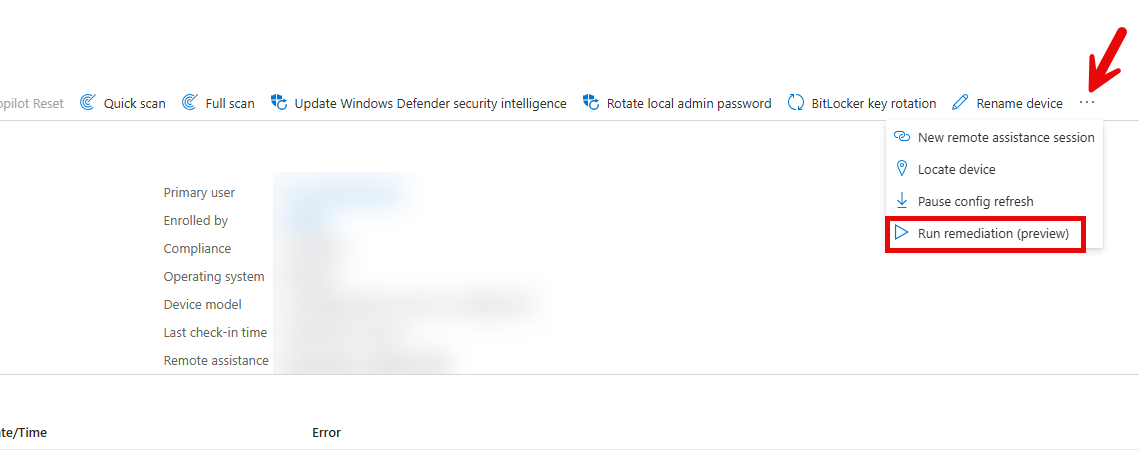
You need two applications, “HP Image Assistant Installer x.x.x.x”, “HP Driver Updates – Manual Check” and one remediation.
HP Image Assistant Installer:
I made the version like this: The first tree numbers is the Image Assistant version (5.3.2.2) and the last number is the internet release. So in this case, internal release number 2 (5.3.2.2).
The installere application cotains a PSAppDeployToolkit with HP Image Assistant files, install.cmd and uninstall.cmd.
This version contains “HP Image Assistant 5.3.2”. When a new version is released, you just need to delete all the files in “HP Image Assistant 5.3.2.2 Installer\HPIA\Files” and copy the new HP Image Assistant files, rename the 5.3.2.2.txt to the new version and change the version in the powershell script file.
Dialog boxes:
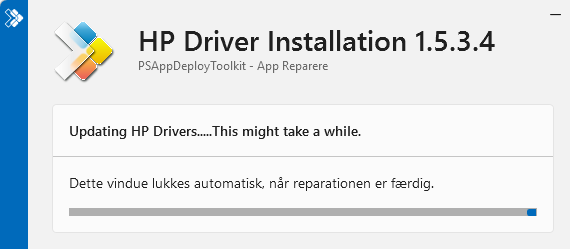
Balloon dialog box when Image assistant is running. This can be changed in the script.
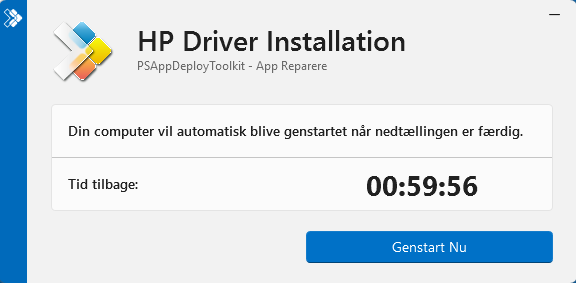
When a reboot is requered. The countdown can be changed in the script.
Installation path: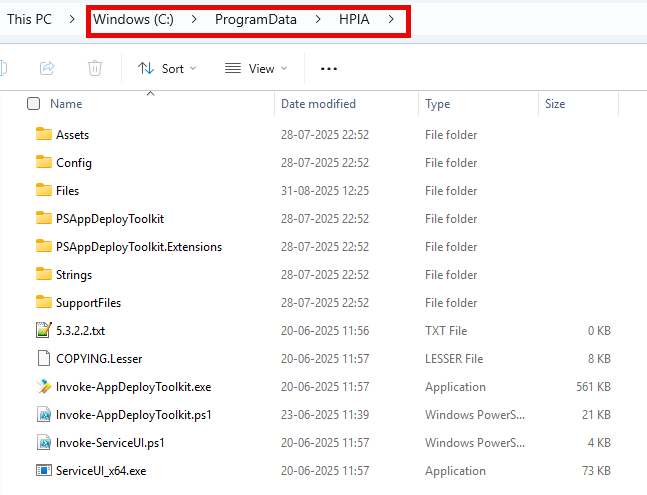
%programdata%/HPIA
Log files: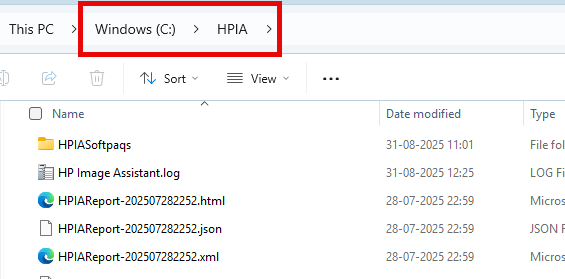
“C:\HPIA\ HP Image Assistant.log” – Show log of HP Image Assistant scanning
”C:\Windows\Logs\Software\HP_DriverInstallation_%VERSION%_EN_01_PSAppDeployToolkit_Install.log” – Show the result of the app that starts HP driver update when running automatic.
”C:\Windows\Logs\Software\HP_DriverInstallation_%VERSION%_EN_01_PSAppDeployToolkit_Repair.log” – Shows the result of the app that starts HP driver update manually.
Result files: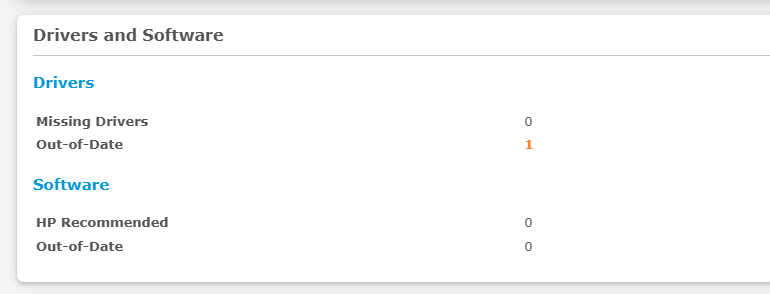
“C:\HPIA\ HPIAReport-%DATE%.html” – Shows the result of the scanning in html format.

“C:\HPIA\ HPIAResult_Install–%DATE%..html” – Shows the result of the installation in html format
Files need: (Click to download)
- HP Image Assistant 5.3.2.2 Installer.intunewin (Ready for Intune)
- OR
- HP Image Assistant 5.3.2.2 Installer.zip (You can see the code, but you need to create a win32 file for Intune)
- HPIA-Detection.ps1 (For remediation)
- HPIA-Remediation.ps1 (For remediation)
Deployment Group
First you need to create a dynamic group that automatically add HP device into the group. Later we will use this group to deploy the solution.
| Login to Intune | |
| Click Groups | 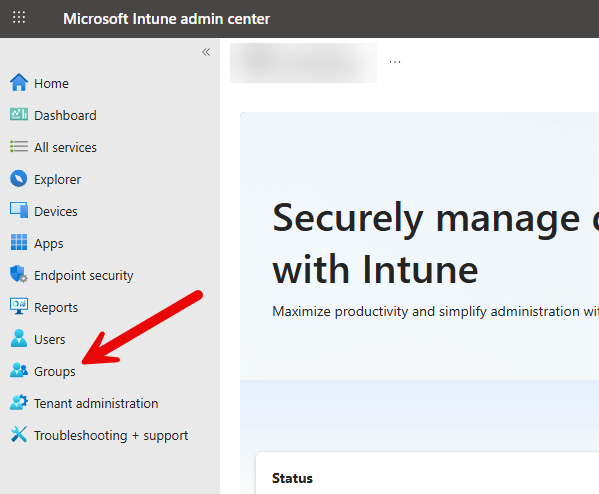 |
| Click New group | 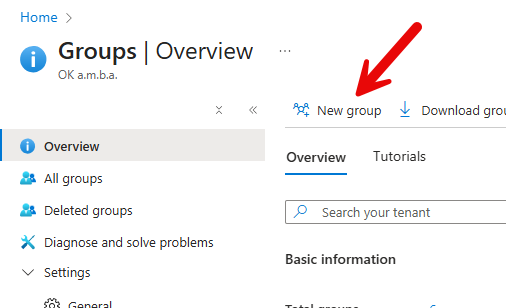 |
| Enter a Group name Select Dynamic Device | 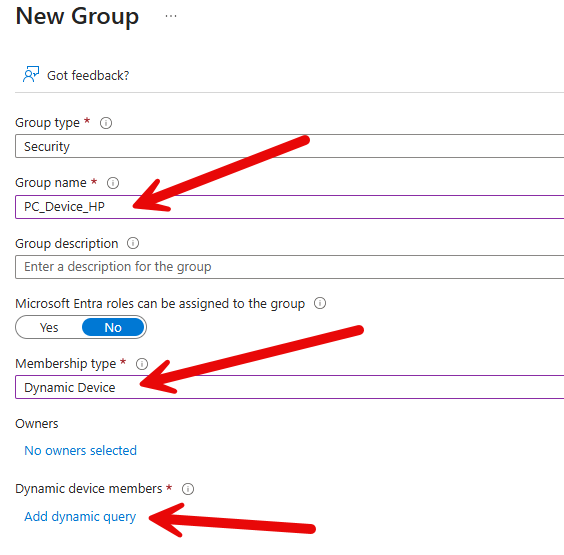 |
| Click Edit | 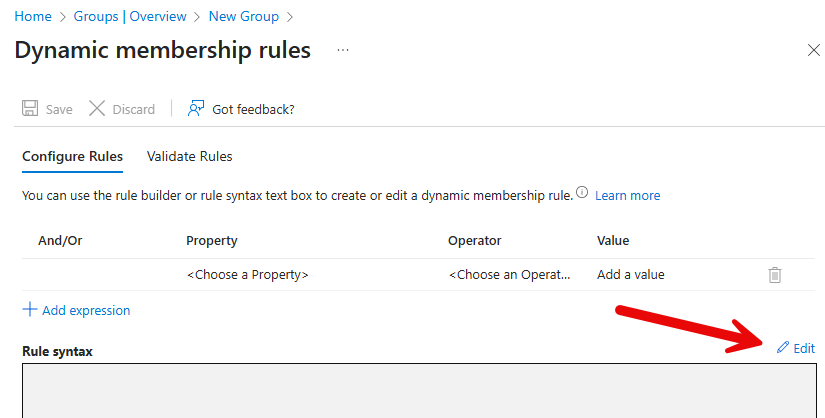 |
| Paste the following query: (device.deviceManufacturer -eq “HP”) and (device.deviceModel -startsWith “HP EliteBook”) or (device.deviceModel -startsWith “HP EliteDesk”) You might need to adjust it to your needs. Click OK | 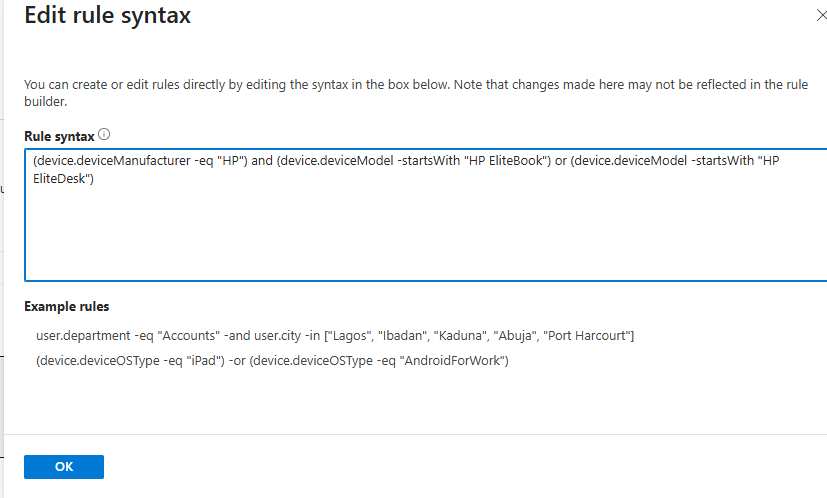 |
| Click Save | 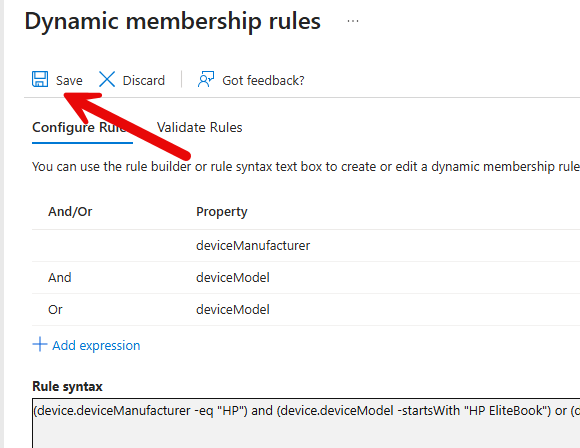 |
| Click Create | 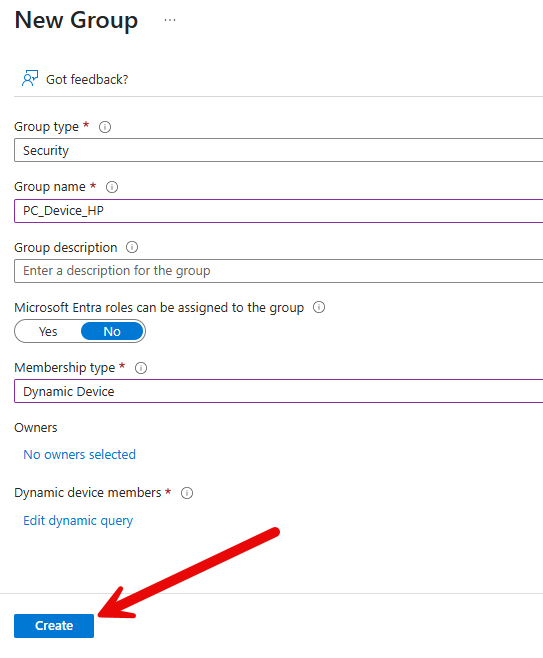 |
Intune application (HP Image Assistant 5.3.2.2 Installer)
This is the application the install the solution to %programdata%/HPIA
| Login to Intune if you are not logged in. | |
| Click Apps | 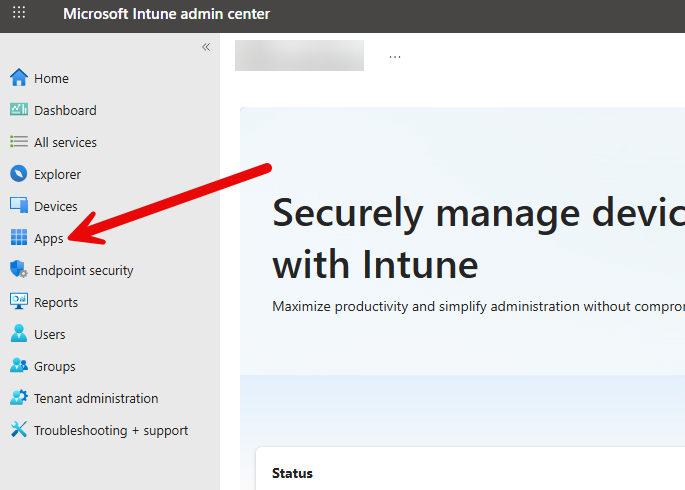 |
| Click Windows | 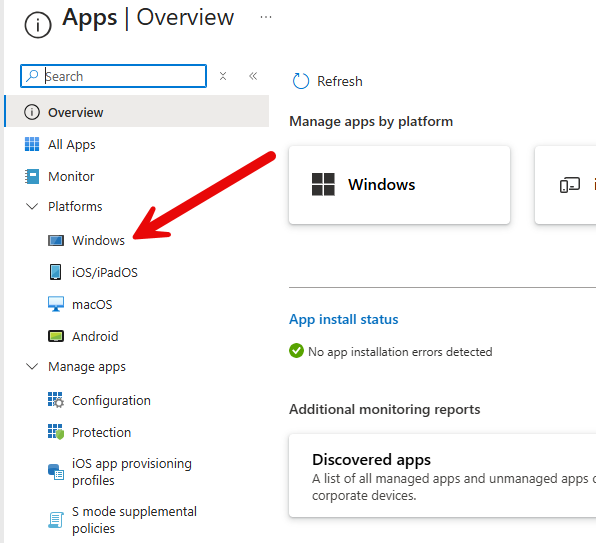 |
| Click Create | 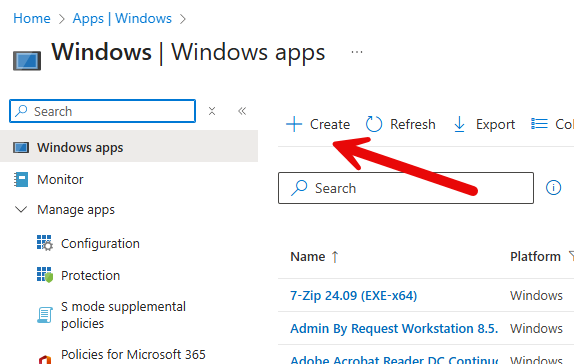 |
| Choose Windows app (Win32) Click Select | 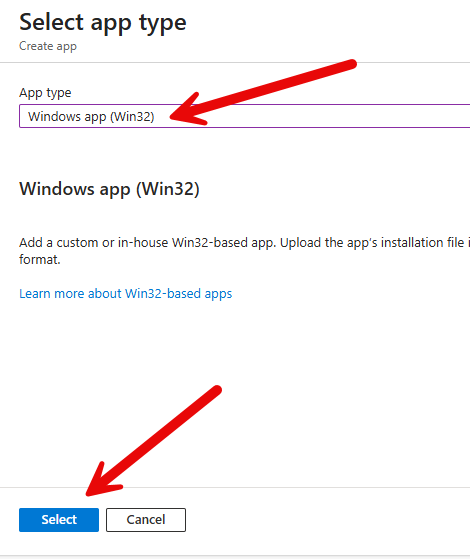 |
| Click Select app package file | 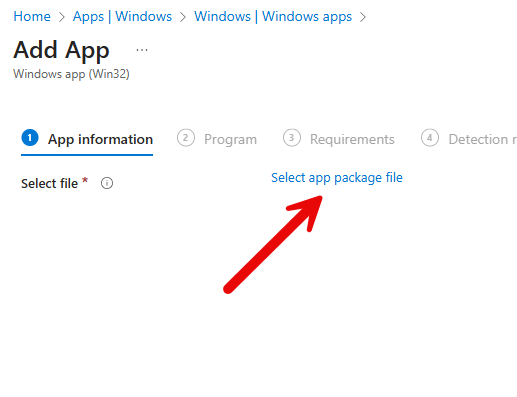 |
| Choose your intunewin file Click OK | 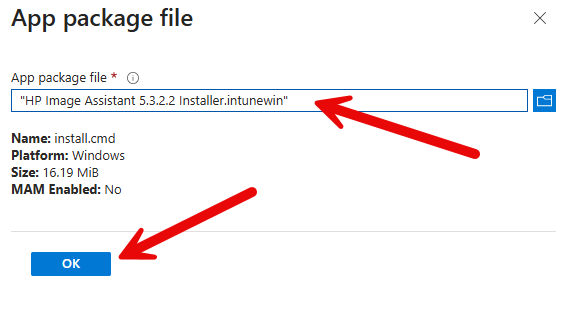 |
| App information Enter a Name Enter a Description Enter a Publisher Enter a Version Click Next | 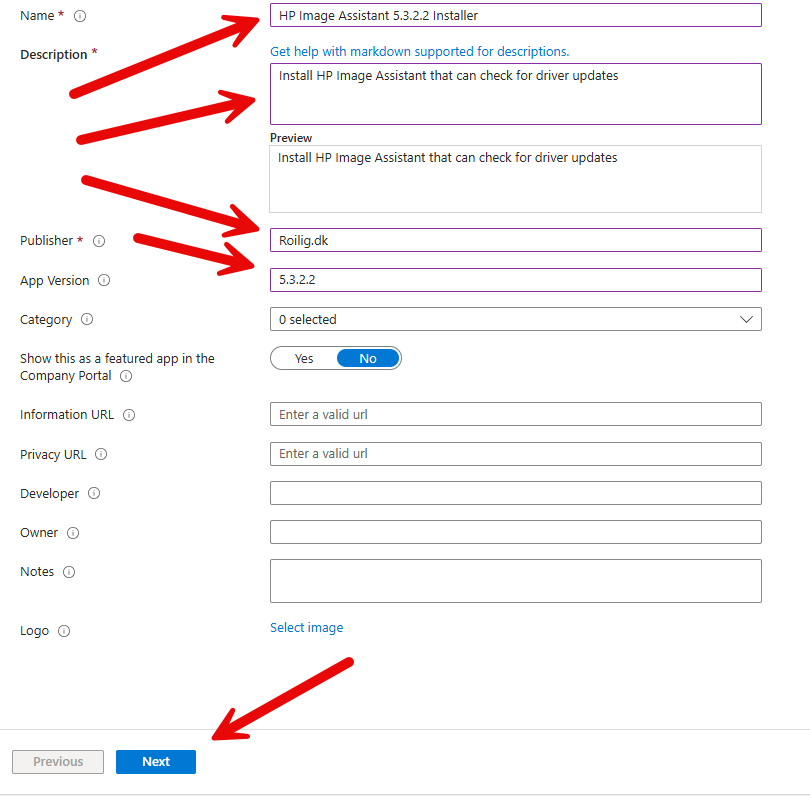 |
| Program Install command: install.cmd Uninstall command: uninstall.cmd Change “Installation time required (mins)” to 10 Add the Return code Click Next | 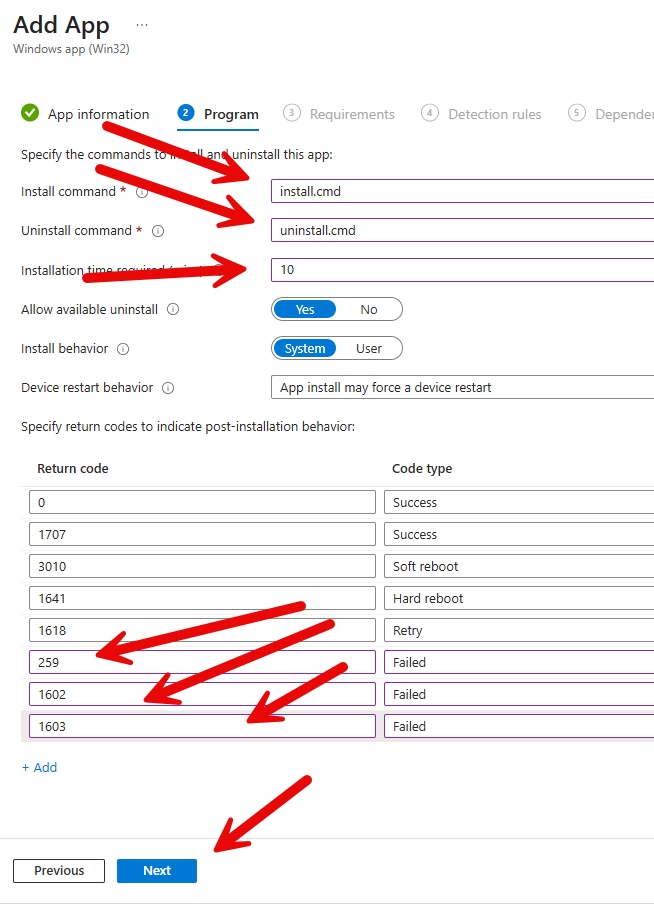 |
| Requirements Choose a Windows Version Click Next | 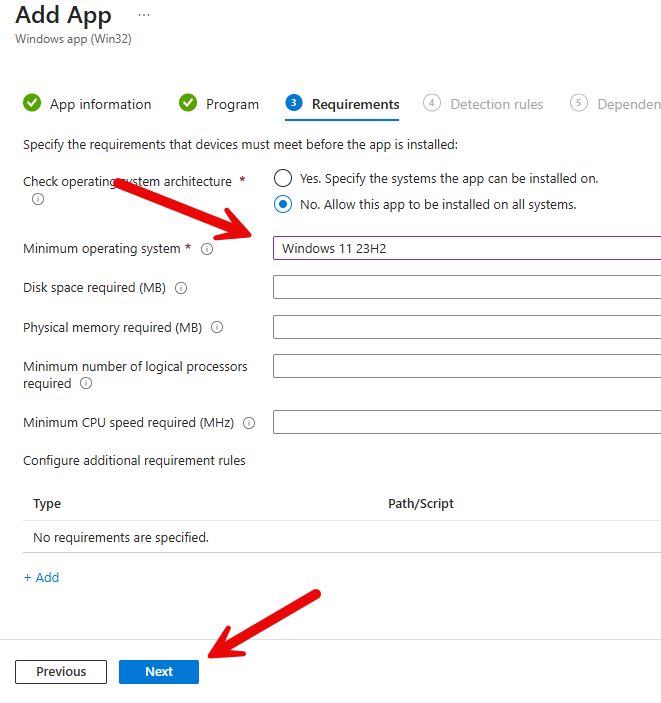 |
| Detection rules Choose Manually configured detection rules Click Add | 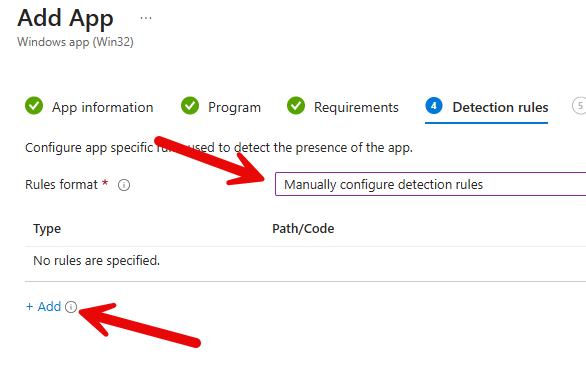 |
| Detection rules Rule type: File Path: %programdata%/HPIA File or folder: 5.3.2.2.txt Click OK | 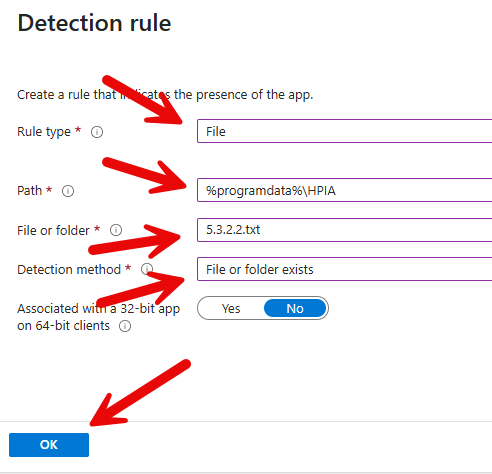 |
| Detection rules Click Next | 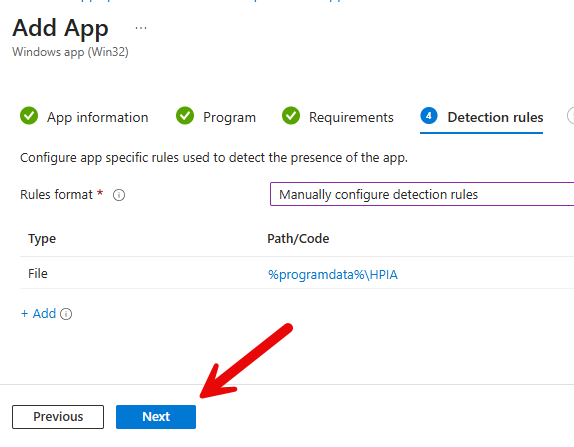 |
| Dependencies Click Next | 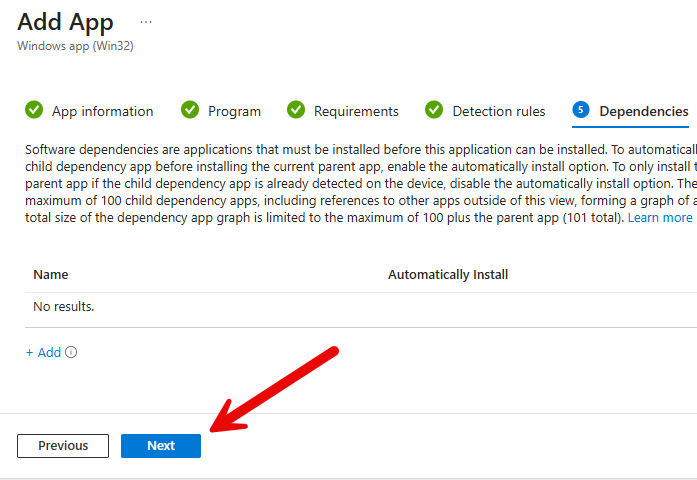 |
| Supersedence Click Next | 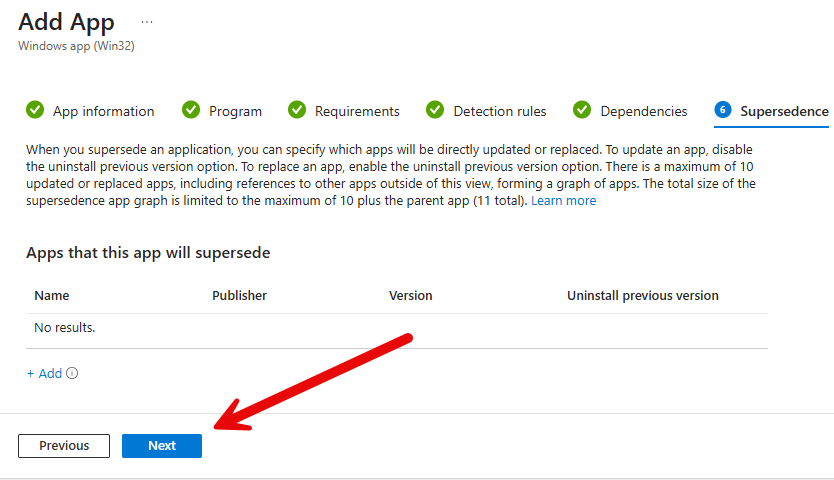 |
| Assignments Click Add group | 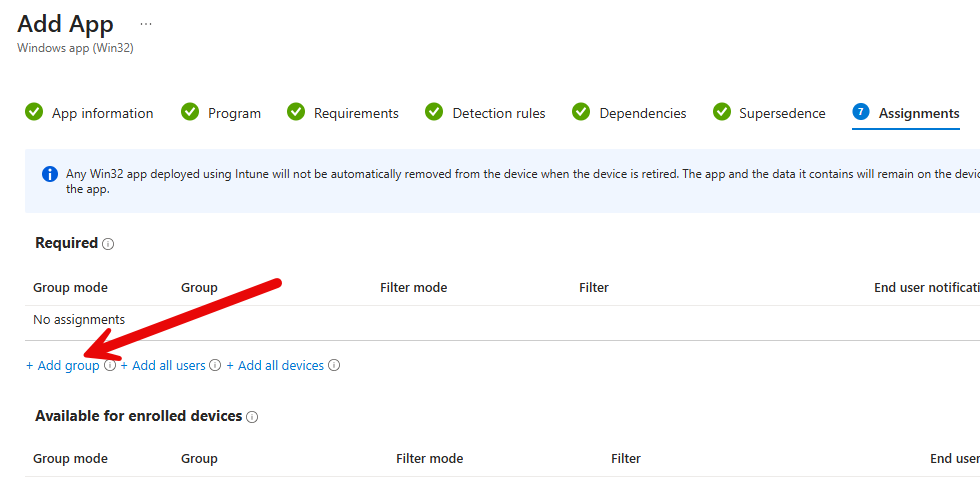 |
| Assignments Search for pc_ Choose PC_Device_HP Click Select | 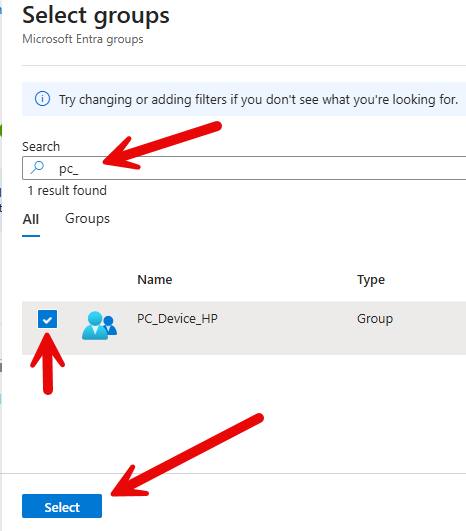 |
| Assignments Click Next | 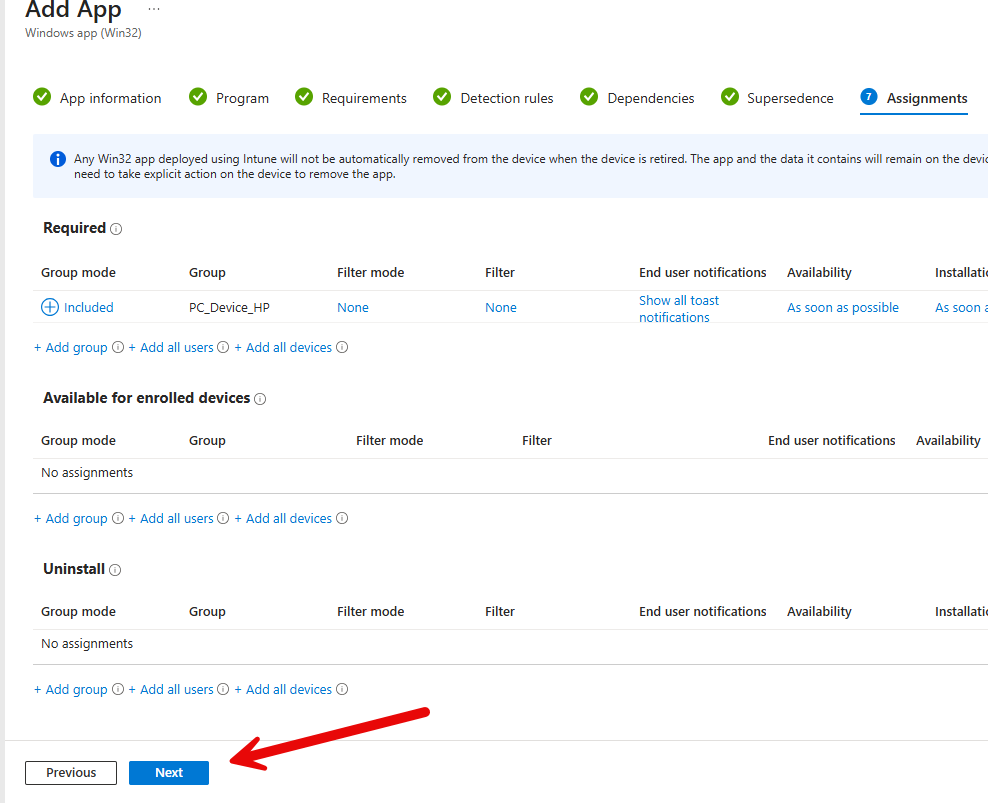 |
| Review + Create Click Create | 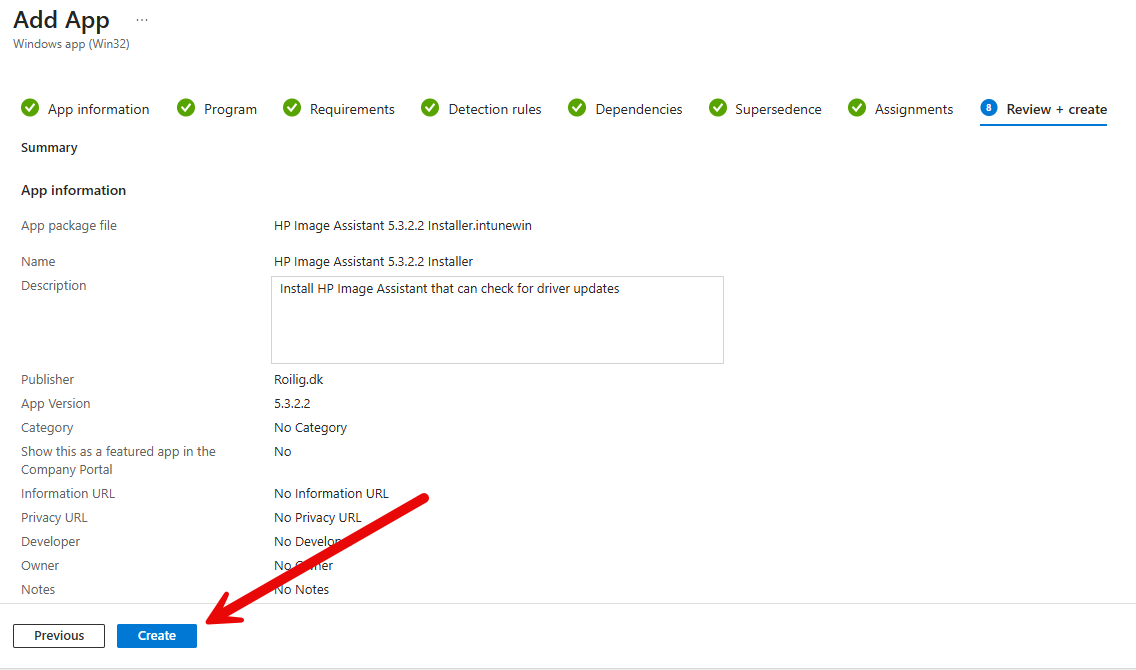 |
Intune Application (HP Driver Updates – Manual Check)
This appliocation will be avaliable in the company portal to trigger the driver check/install manually.
| Login to Intune if you are not logged in. | |
| Click Apps | 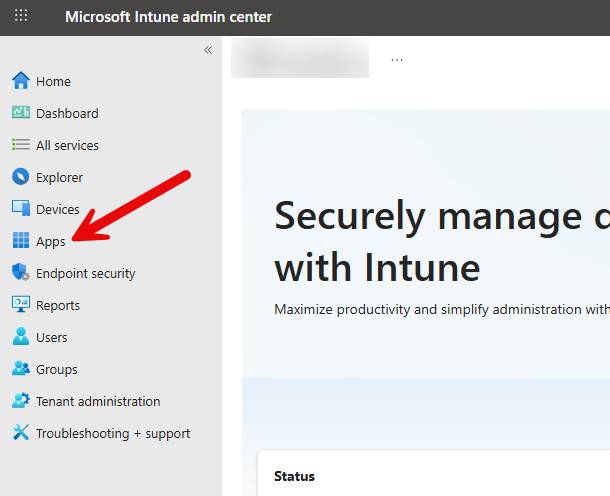 |
| Click Windows | 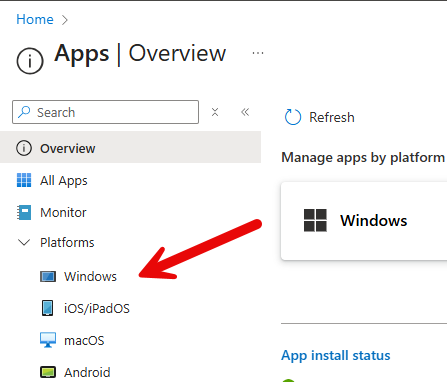 |
| Click Create | 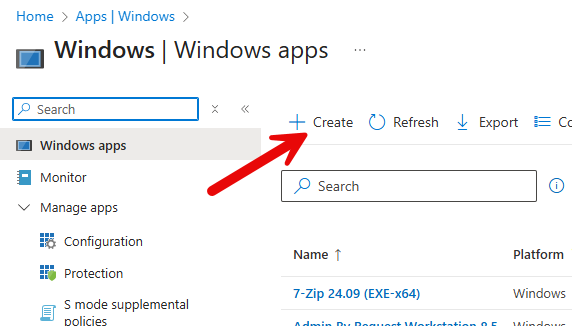 |
| Select Windows app (Win32) Click Select | 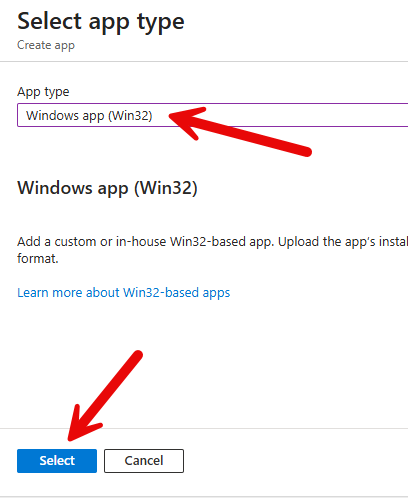 |
| Click Select app package file | 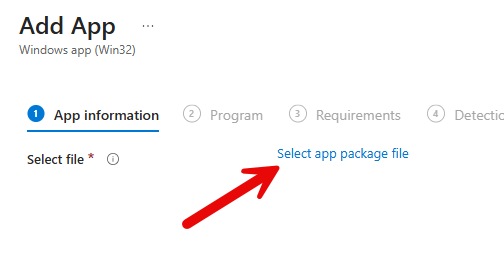 |
| Create a “Dummy” .intune file. It could be a cmd with no content. It dosent matter as we are not going to use the intune file. Select the intune file Click OK | 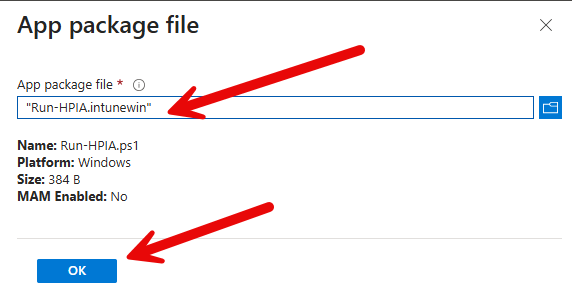 |
| App information Enter name Enter Description Enter Publisher Enter Version Click Next | 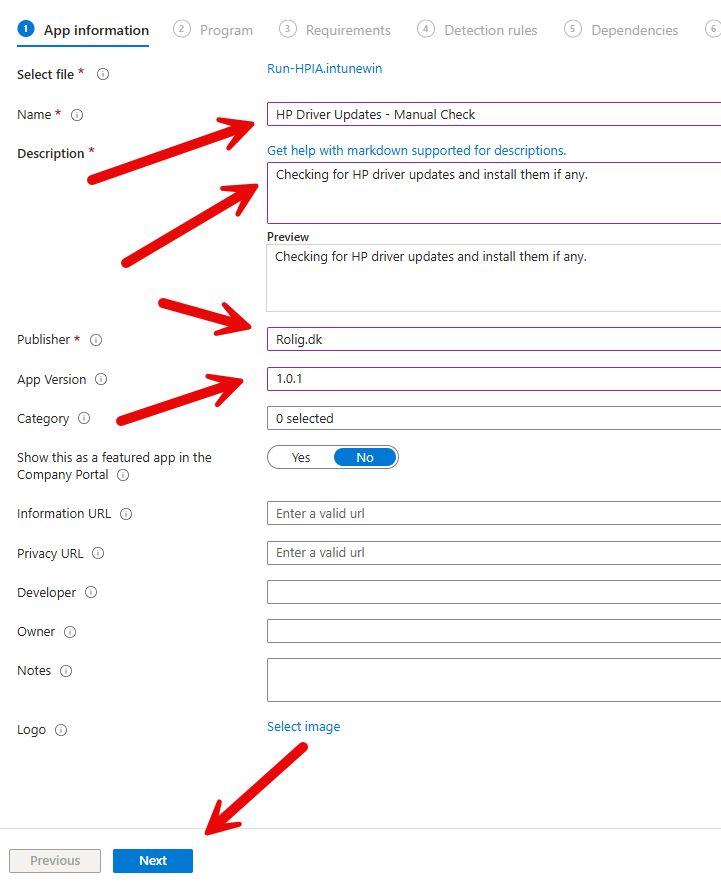 |
| Program Install command: %SystemRoot%\System32\WindowsPowerShell\v1.0\PowerShell.exe -ExecutionPolicy Bypass -NoProfile -File %programdata%\HPIA\Invoke-ServiceUI.ps1 -DeploymentType Repair -AllowRebootPassThru Uninstall command: none Remove all return code except 0 Click Next | 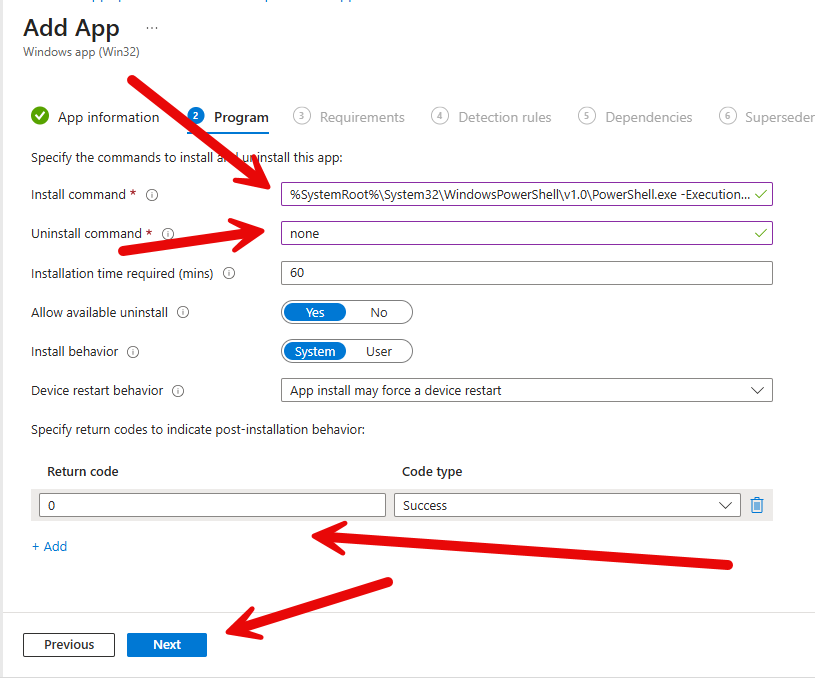 |
| Requirements Choose a Windows Version Click Next | 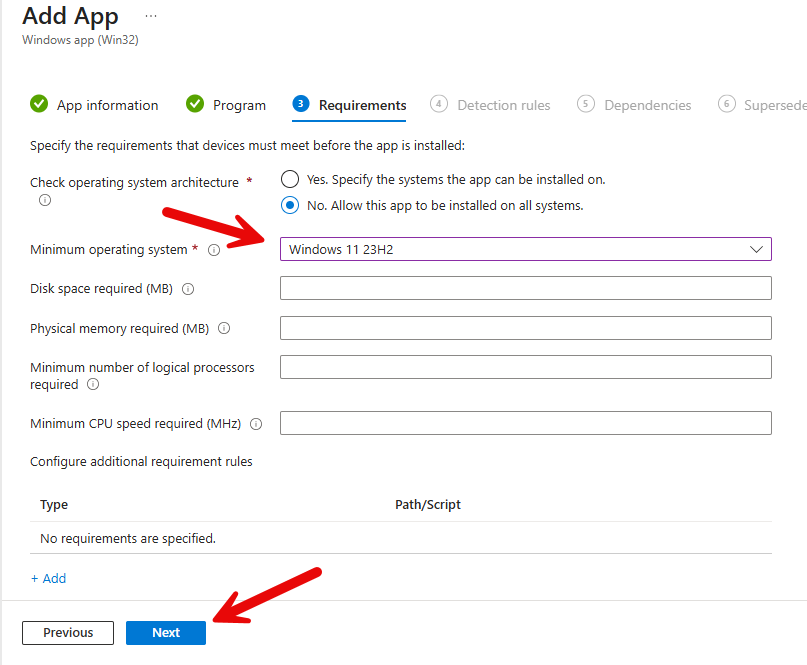 |
| Detection rules Choose Manually configured detection rules Click Add | 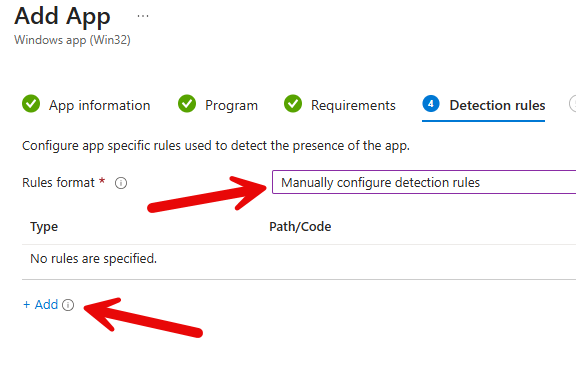 |
| Detection rules Create a detection rulle that fails. In this example the folder dosen’t exsists. Click OK | 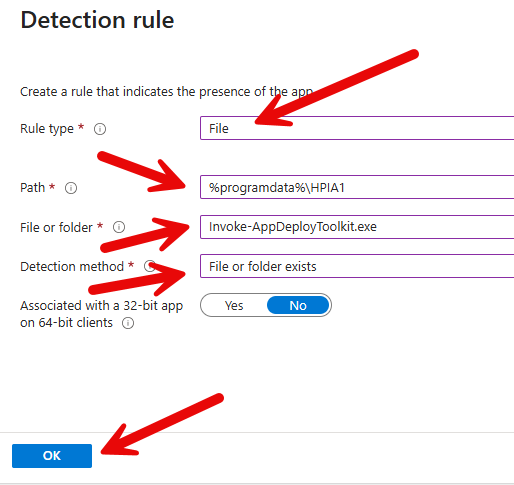 |
| Detection rules Click Next | 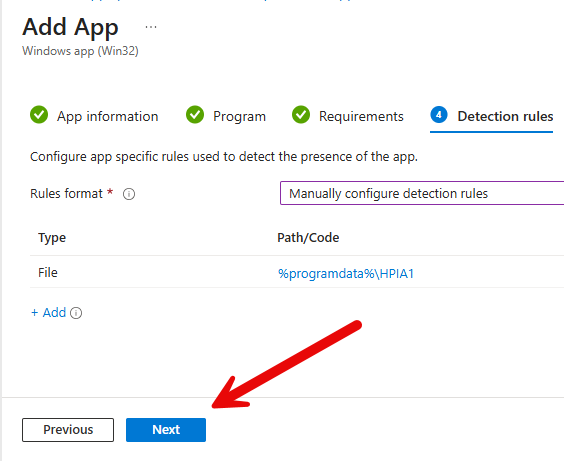 |
| Dependencies Click Add | 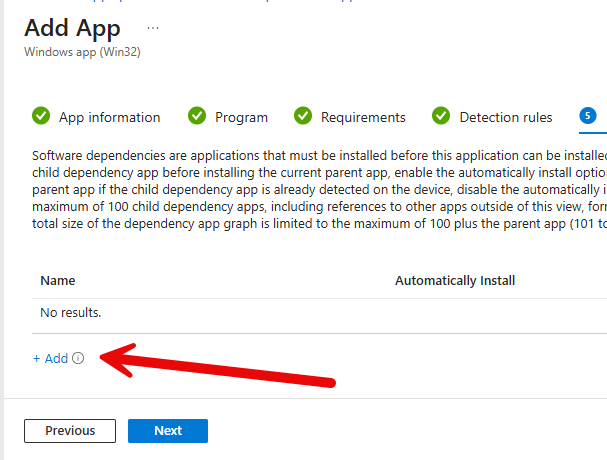 |
| Detection rules Search for hp image Select HP Image Assistant 5.3.2.2 Installer Click Select | 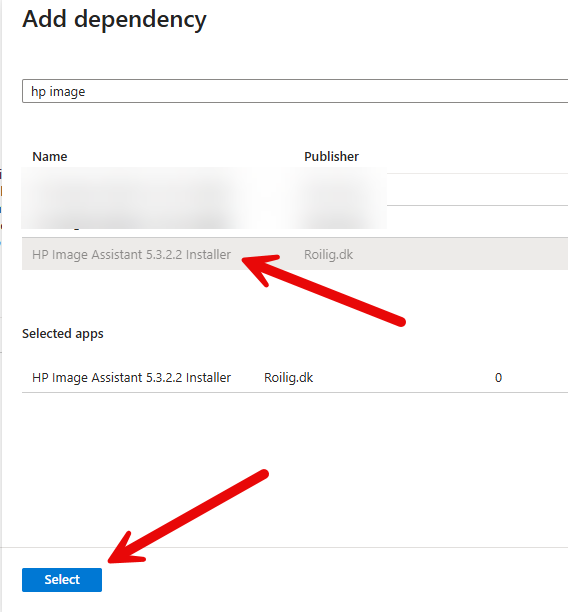 |
| Dependencies Click Next | 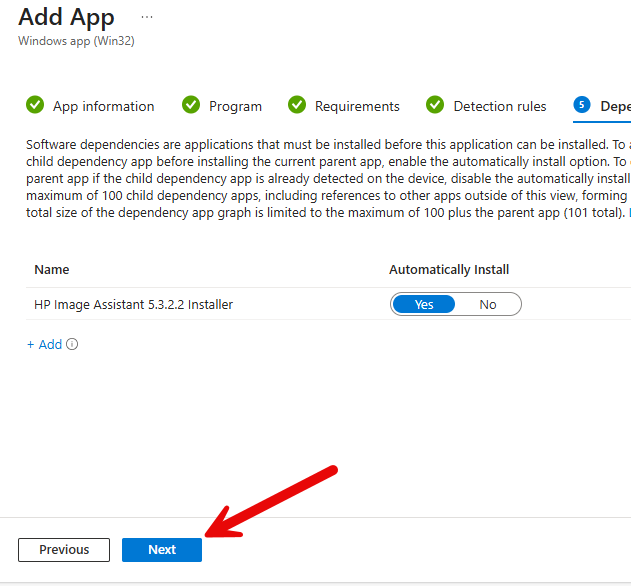 |
| Supersedence Click Next | 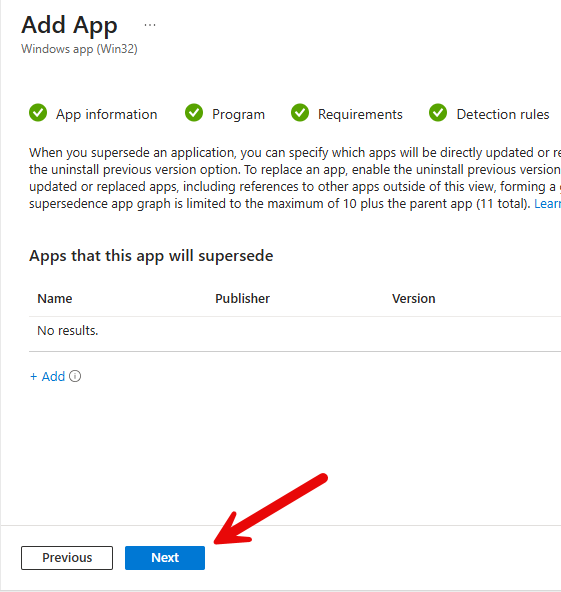 |
| Assignments Click Add group | 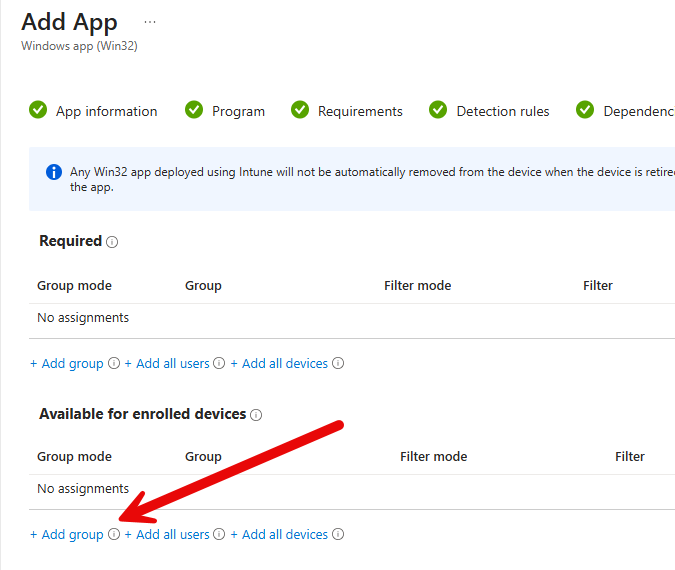 |
| Assignments Serach for pc_ Select PC_Device_HP Click Select | 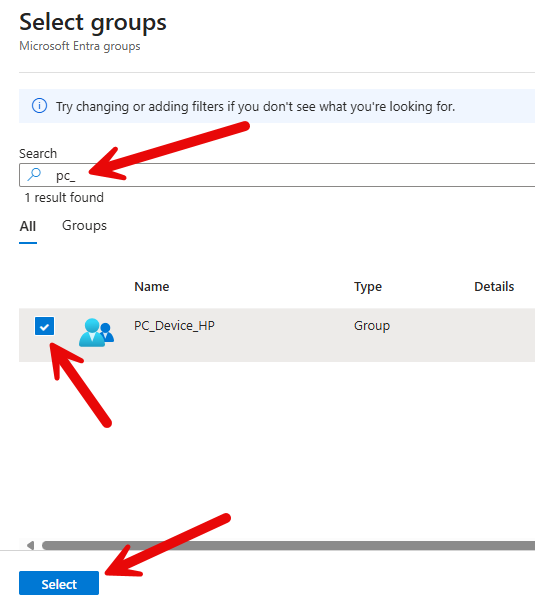 |
| Assignments Click Next | 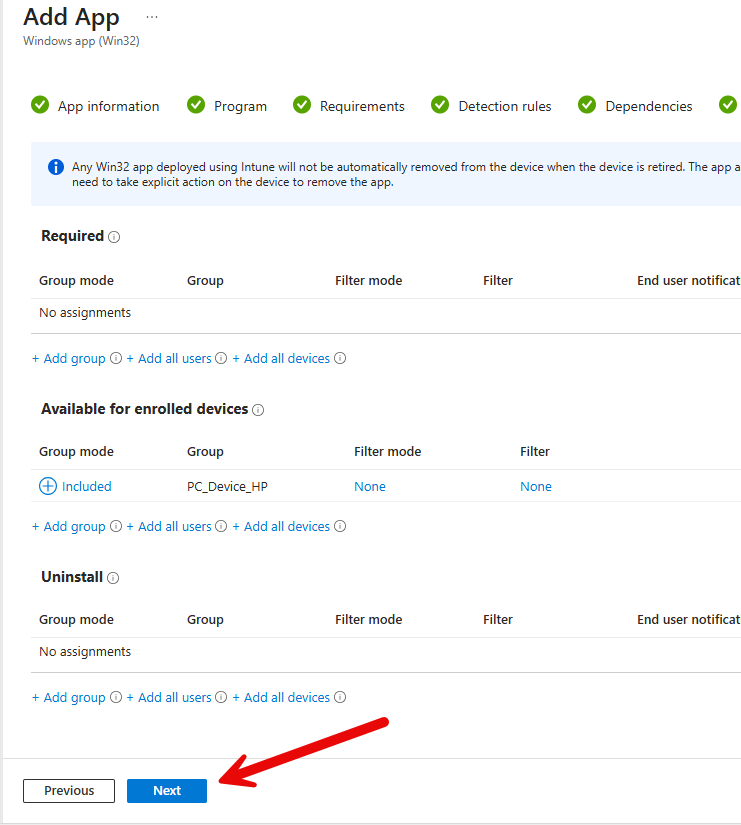 |
| Review + create Click Create | 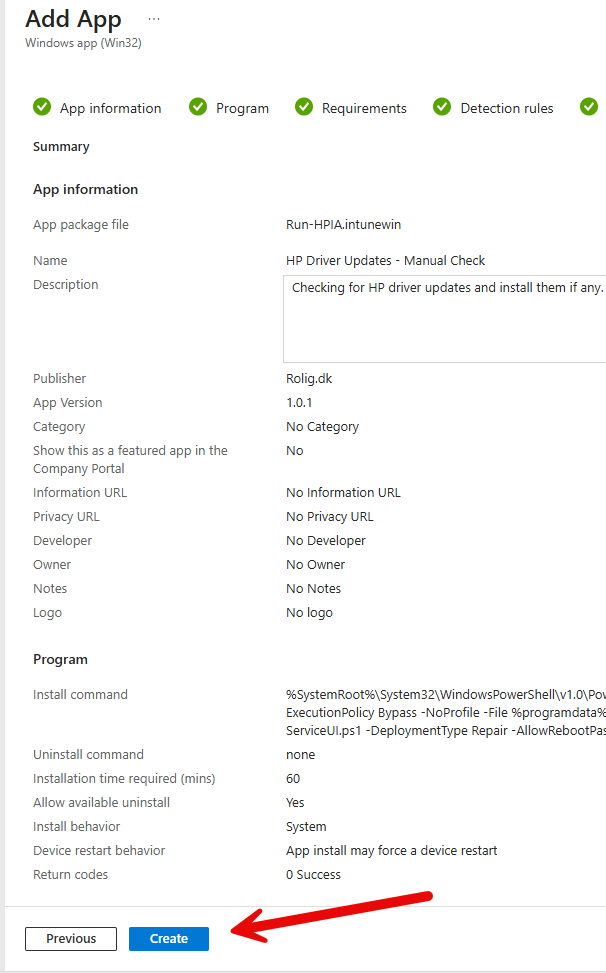 |
Remediation
To be able to run the driver installation on a schedule, we need to create a remediation.
| Login to Intune if you are not logged in. | |
| Click Devices | 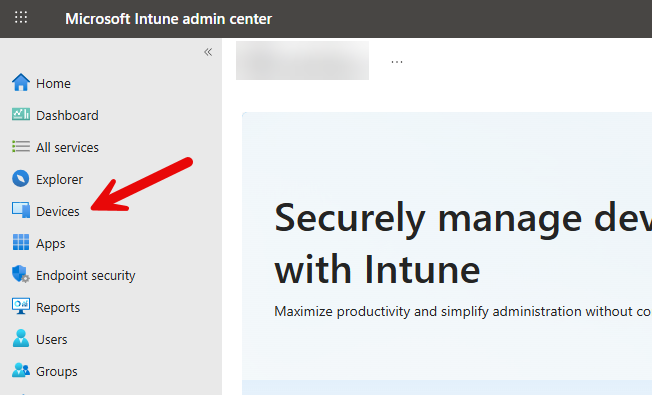 |
| Click Scripts and remediations Click Create | 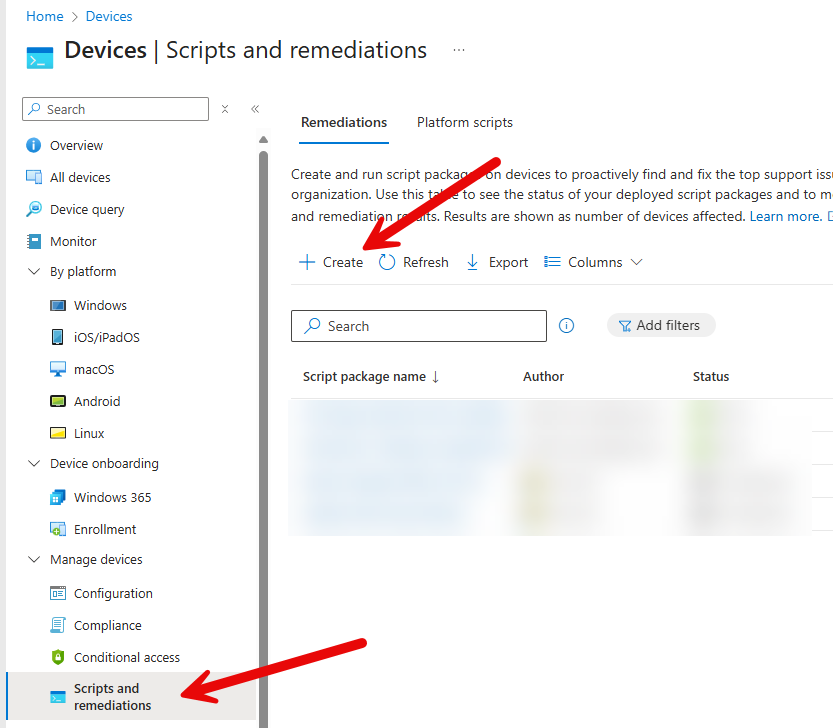 |
| Basics Enter Name Enter Description Enter Publisher Click Next | 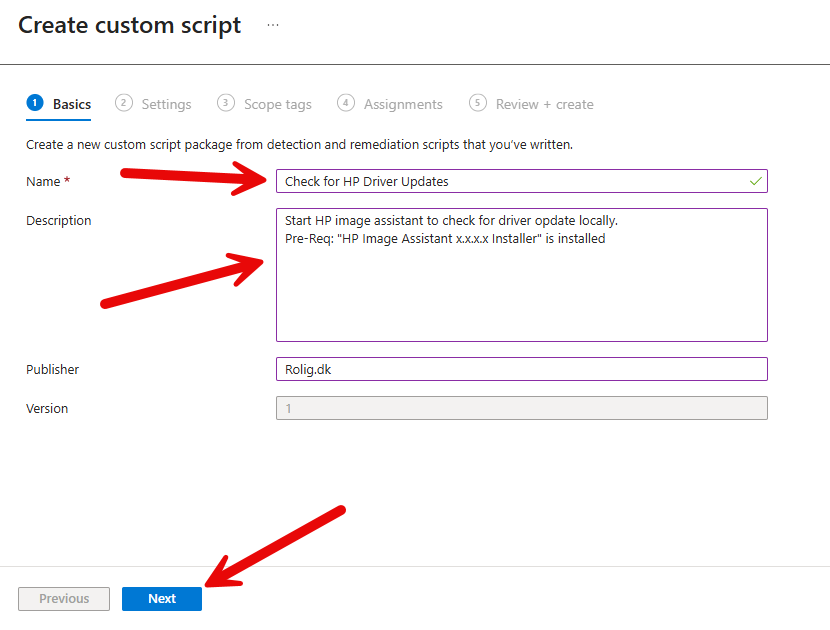 |
| Settings Detection script file: Browse for the ps file that you have downloaded Remediation script file: Browse for the ps file that you have downloaded Run script in 64-bit PowerShell: Yes Click Next | 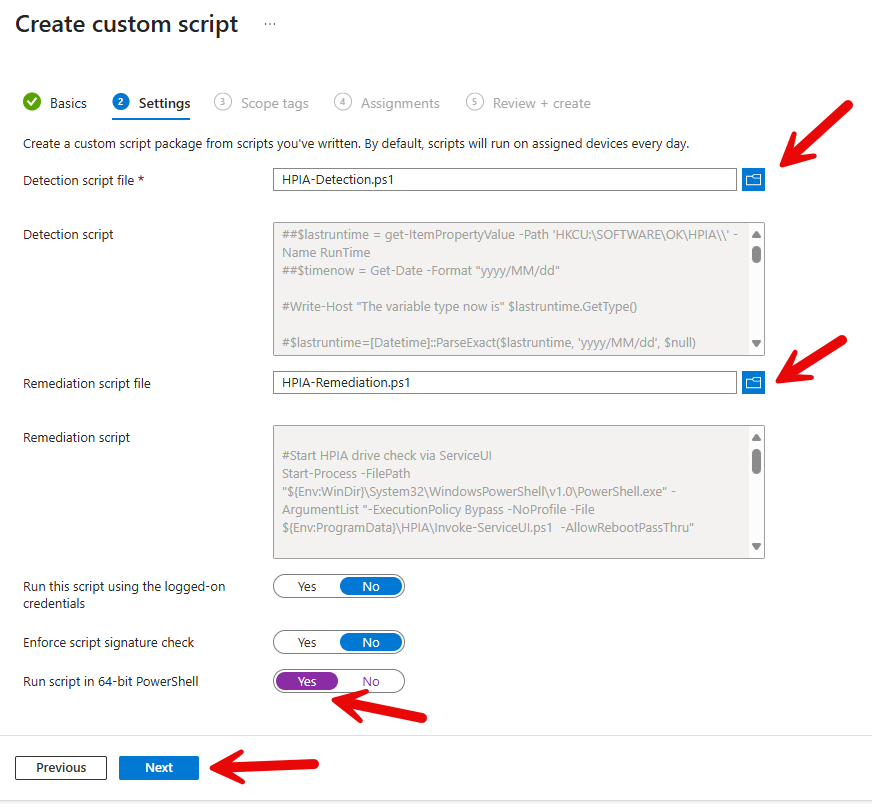 |
| Scope tags Click Next | 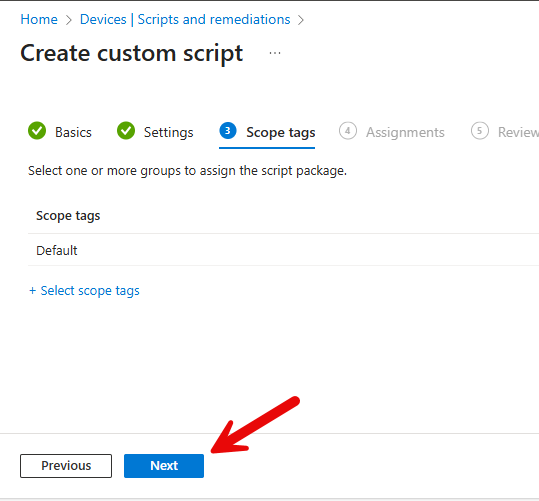 |
| Assignments Click Select group to include | 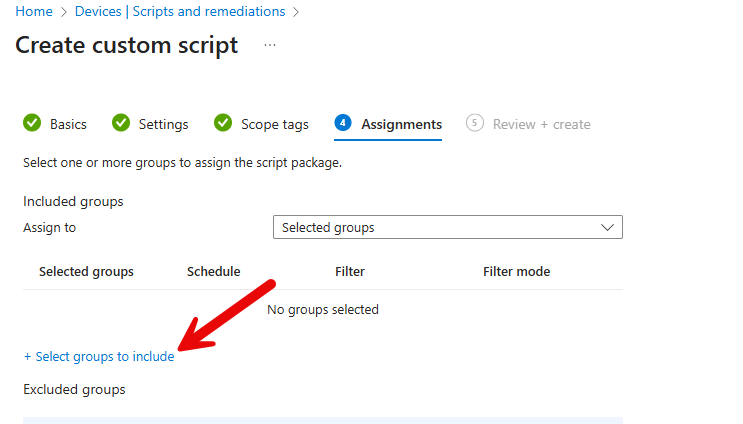 |
| Assignments Search for pc_ Select PC_Device_HP Click Select | 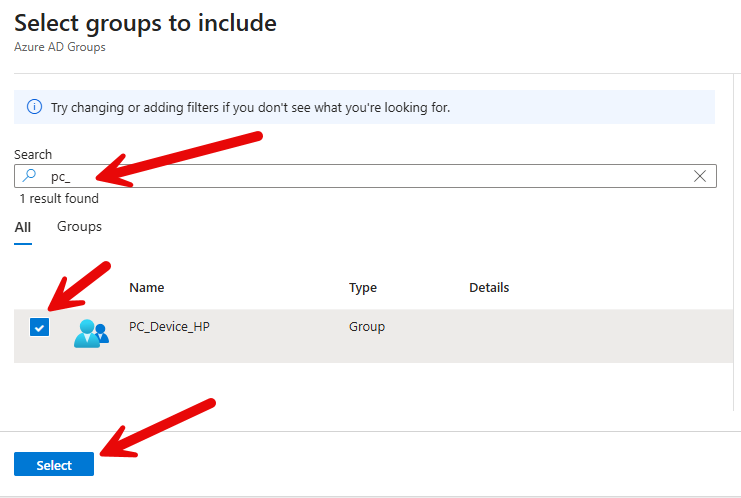 |
| Assignments Click Daily | 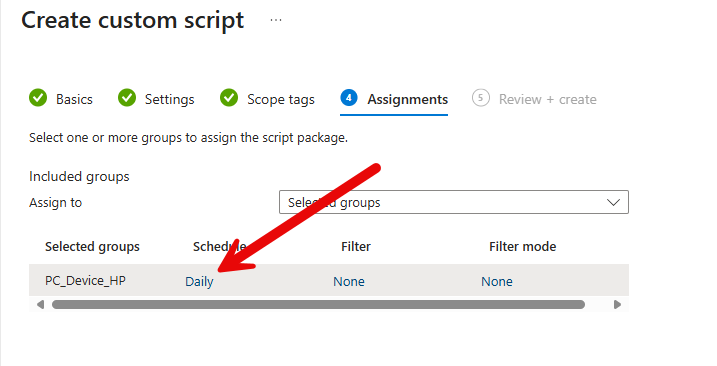 |
| Assignments Choose how often to run the drive check. Click Apply | 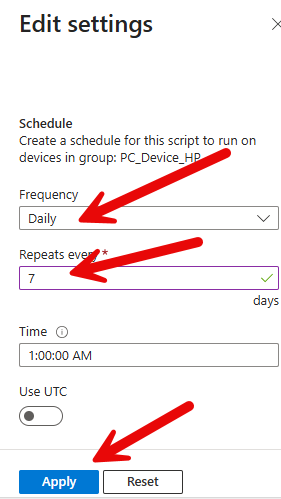 |
| Assignments Click Next | 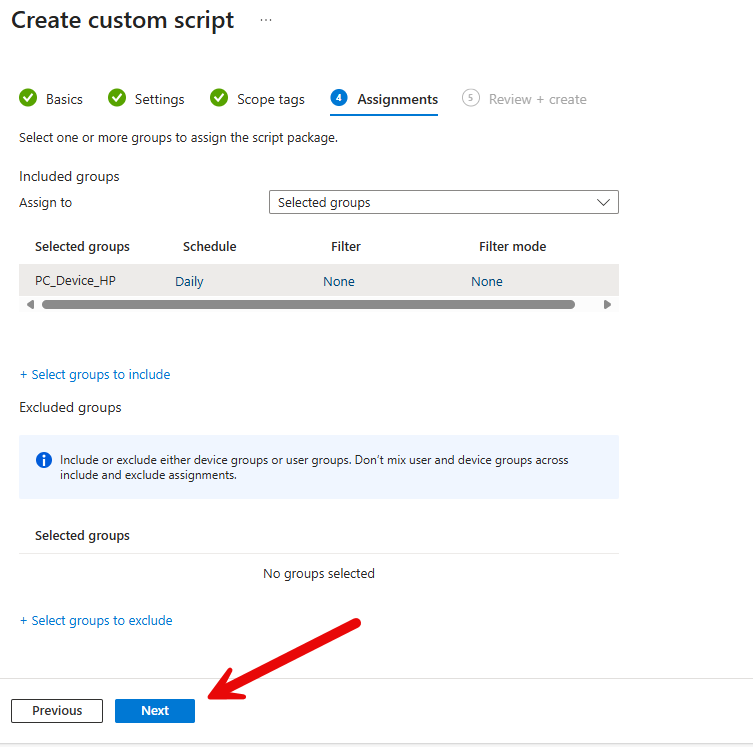 |
| Review + create Click Create | 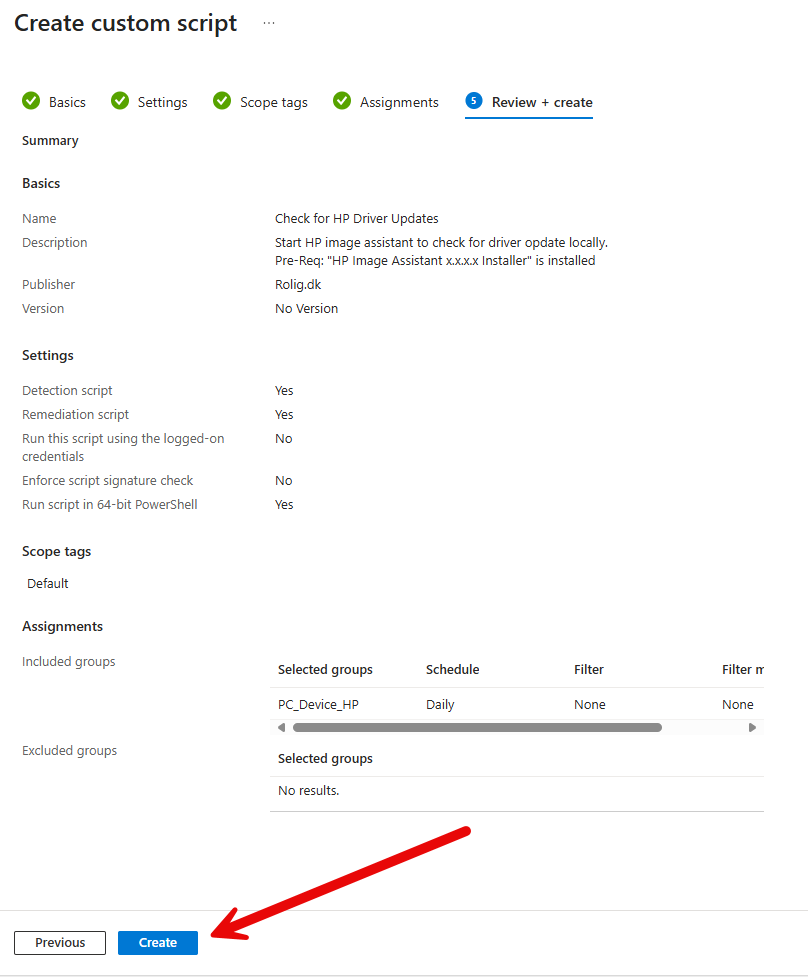 |
That’s it. Your HP devices will now check, every week, if there is any new updates and install them automatically.