———————————————————————–
Update 10-12-2016
A reader of my blog contacted me with a CMD file that handles error codes. The cmd script:
################CODESNIPPET HPQFLASH################
PUSHD %~dp0
SET _upd=HPBIOSUPDREC.exe
SET bios=%1
IF /I “%PROCESSOR_ARCHITECTURE%” EQU “AMD64” (
SET _upd=HPBIOSUPDREC64.exe
)
“%_upd%” -f%bios% -s -b -r
POPD
REM ERRORLEVEL 259=System family does not match family in ROM update
REM ERRORLEVEL 273=BIOS is already same version
REM ERRORLEVEL 282=BIOS installed is newer than the one set
REM ERRORLEVEL 3010=Reboot necessary
IF %ERRORLEVEL% NEQ 282 (
IF %ERRORLEVEL% NEQ 273 (
IF %ERRORLEVEL% NEQ 259 (
EXIT /B 3010
)
)
)
################CODESNIPPET HPQFLASH################
################CODESNIPPET BCU################
PUSHD %~dp0
SET _bcu=BiosConfigUtility.exe
IF /I “%PROCESSOR_ARCHITECTURE%” EQU “AMD64” (
SET _bcu=BiosConfigUtility64.exe
)
“%_bcu%” /cspwdfile:”%~dp0TamediaPW_1.0.bin” /nspwdfile:”” /l
IF %ERRORLEVEL% EQU 10 (
“%_bcu%” /cspwdfile:”%~dp0TamediaPW_2.0.bin” /nspwdfile:”” /l
)
POPD
IF %ERRORLEVEL% NEQ 10 (
EXIT /B 3010
)
################CODESNIPPET BCU################
———————————————————————–
Update 30-09-2016
If you run the .cmd file the is described in this post, then the task sequence step will always exit with success. If you want the step to fail, if there is an error during BIOS configuration. Then you should run this command instead of the .cmd file:
BiosConfigUtility64.exe /set:”CONFIG_FILE.txt” /nspwdfile:”Bios_Password.bin” /cspwdfile:”Bios_Password.bin”
There is some setting that you cannot apply on another computers. Ex. “Universally Unique Identifier (UUID)”. You have to comment those out in your bios configuration file. You have to apply the bios configuration file on another Pc, then the one where you have created it, to find with settings that fails. Because all the settings will always work on the computer where it is created. To test the settings you can just run the command line above on another pc.
———————————————————————–
Follow this guide to configure HP bios settings during OSD.
1. Download HP BIOS Configuration Utility (BCU) from HP or BCU v4.0.15.1 (sp74840) here and install on your reference machine.
2. Reboot the Pc and configure the BIOS as you would like.
3. Start Windows again.
4. Start a Command prompt in admin mode and browse to: “C:\Program Files (86)\HP\BIOS Configuration Utility”
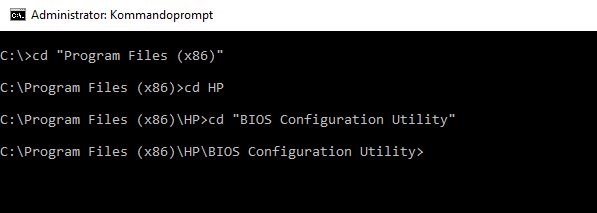
5. Run “BiosConfigUtility.exe /Get:CUSTOMNAME.txt” to save the Bios.


6. If you want to create a password for the BIOS, then you can run this command line: HPQPswd.exe /s /p”PASSWORD” /f”FILENAME.bin”

7. Now you have the files that we should use in the task sequence in SCCM.

8. Create a cmd file and call it “BIOS_HP820G3_Config.cmd” with the following content:
pushd %~dp0
set _bcu=BiosConfigUtility.exe
if /I “%PROCESSOR_ARCHITECTURE%” EQU “AMD64” set _bcu=BiosConfigUtility64.exe
“%_bcu%” /nspwdfile:”%~dp0Bios_Password.bin” /set:”%~dp0BIOS_HP820G3.txt”
IF %ERRORLEVEL% NEQ 0 “%_bcu%” /cspwdfile:”%~dp0Bios_Password.bin” /set:”%~dp0BIOS_HP820G3.txt”
popd
9. Create a SCCM package called “OS Scripts” with “BIOS_HP820G3.txt” + “BIOS_Password.bin” + “BIOS_HP820G3_Config.cmd” and “BiosConfigUtility.exe”.
9. Create a new group and call it “HP Bios Tasks Windows 10”

10. Add a WMI filter to make sure that the step only runs on HP computers.

11. Add a “Run Command Line” step with the following settings:


12. Add a WMI filter to make sure that is only runs on 820G3 models

13. Add a restart step after you Configure Bios step